.svg)
If you’re worried about your Microsoft account being hacked, you’re not alone. Many businesses rely on Microsoft services for email, document sharing, and daily operations. A compromised account can disrupt work, expose sensitive data, and damage your reputation. In this blog, you’ll learn how to spot signs your account has been hacked, steps to recover access, and practical ways to secure your account. We’ll also cover key features, challenges, and best practices for protecting your Microsoft account, including how to handle password and verification updates.
Understanding Microsoft hacked threats and business risks
When a Microsoft account is hacked, it can affect more than just one user. Hackers may access sensitive emails, steal confidential files, or use your account to target others in your organisation. This can lead to financial loss, legal issues, or even a damaged business reputation.
Businesses need to understand how these attacks happen. Hackers often use phishing emails, weak passwords, or outdated security settings to break in. Once inside, they can move quickly—sometimes before you even notice. That’s why it’s important to know what to look for and how to respond fast.
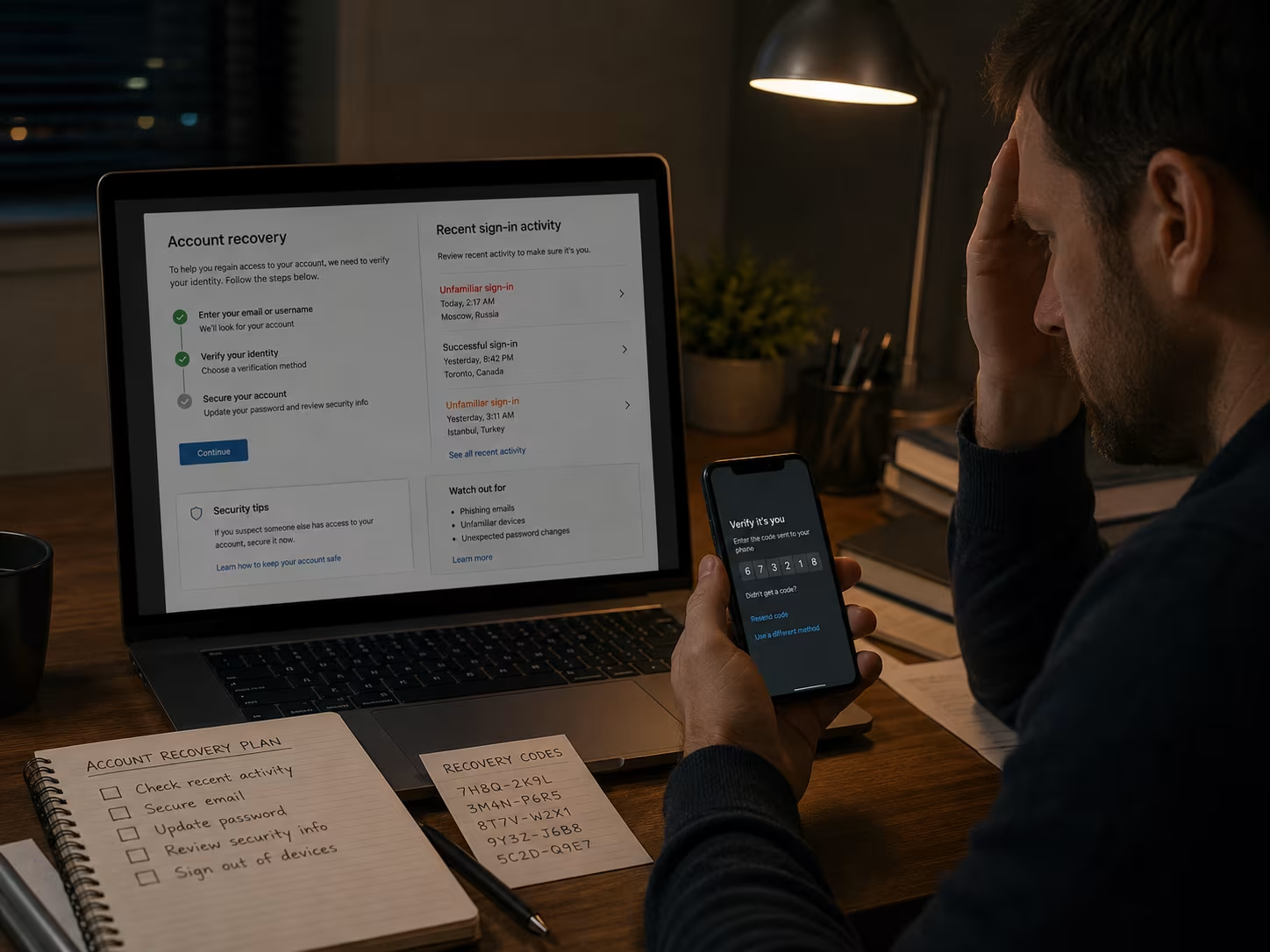
Common mistakes that lead to Microsoft hacked incidents
Even with good intentions, mistakes can make it easier for hackers to get into your Microsoft account. Here are some of the most common errors businesses make:
Mistake #1: Using weak or reused passwords
Many users choose simple passwords or use the same one for multiple accounts. This makes it easy for hackers to guess or steal your login details. Always use strong, unique passwords for every account.
Mistake #2: Ignoring suspicious sign-in alerts
If you get a notification about a new sign-in from an unknown device or location, don’t ignore it. These alerts are often the first sign your account has been hacked. Take action immediately to secure your account.
Mistake #3: Delaying software updates
Outdated apps and operating systems can have security holes. Hackers look for these weaknesses to break in. Make sure you regularly update your Microsoft apps and devices to stay protected.
Mistake #4: Sharing login details
Sometimes, staff share account credentials to save time. This increases the risk of compromise, especially if those details are sent over email or chat. Always keep login information private.
Mistake #5: Failing to enable two-factor authentication
Two-factor authentication (2FA) adds an extra layer of security. Without it, hackers only need your password to get in. Enabling 2FA makes it much harder for attackers to access your account.
Mistake #6: Not training staff on phishing
Phishing emails are a top way hackers steal login details. If your team isn’t trained to spot fake emails, your business is at risk. Regular training helps everyone stay alert.
Mistake #7: Overlooking account recovery options
If you don’t set up recovery email addresses or phone numbers, it’s harder to regain access after a hack. Make sure your recovery details are always up to date.
Essential features for Microsoft hacked prevention
Protecting your Microsoft account is easier when you use the right features:
- Multi-factor authentication (MFA) adds extra security by requiring a code from your phone or app.
- Security alerts notify you of suspicious sign-in attempts or changes to your account.
- Password reset options help you quickly recover access if your account is compromised.
- Device management lets you see and control which devices are signed in to your account.
- Regular security updates from Microsoft patch known vulnerabilities.
- Account activity logs show recent sign-ins and changes, helping you spot unusual behaviour.

The impact of a hacked Microsoft account on business operations
A hacked Microsoft account can disrupt your business in several ways. You might lose access to important emails, documents, or apps, which can slow down projects and cause missed deadlines. If hackers use your account to send spam or phishing emails, it can damage your company’s reputation and lead to lost clients.
There’s also the risk of sensitive data being stolen or leaked. This can result in legal trouble, especially if you handle customer information. Recovering from a hack takes time and resources, so prevention is always better than a cure.
Steps to recover from a Microsoft hack incident
If you suspect your Microsoft account has been hacked, quick action is crucial. Here’s a step-by-step guide to help you regain control and protect your business:
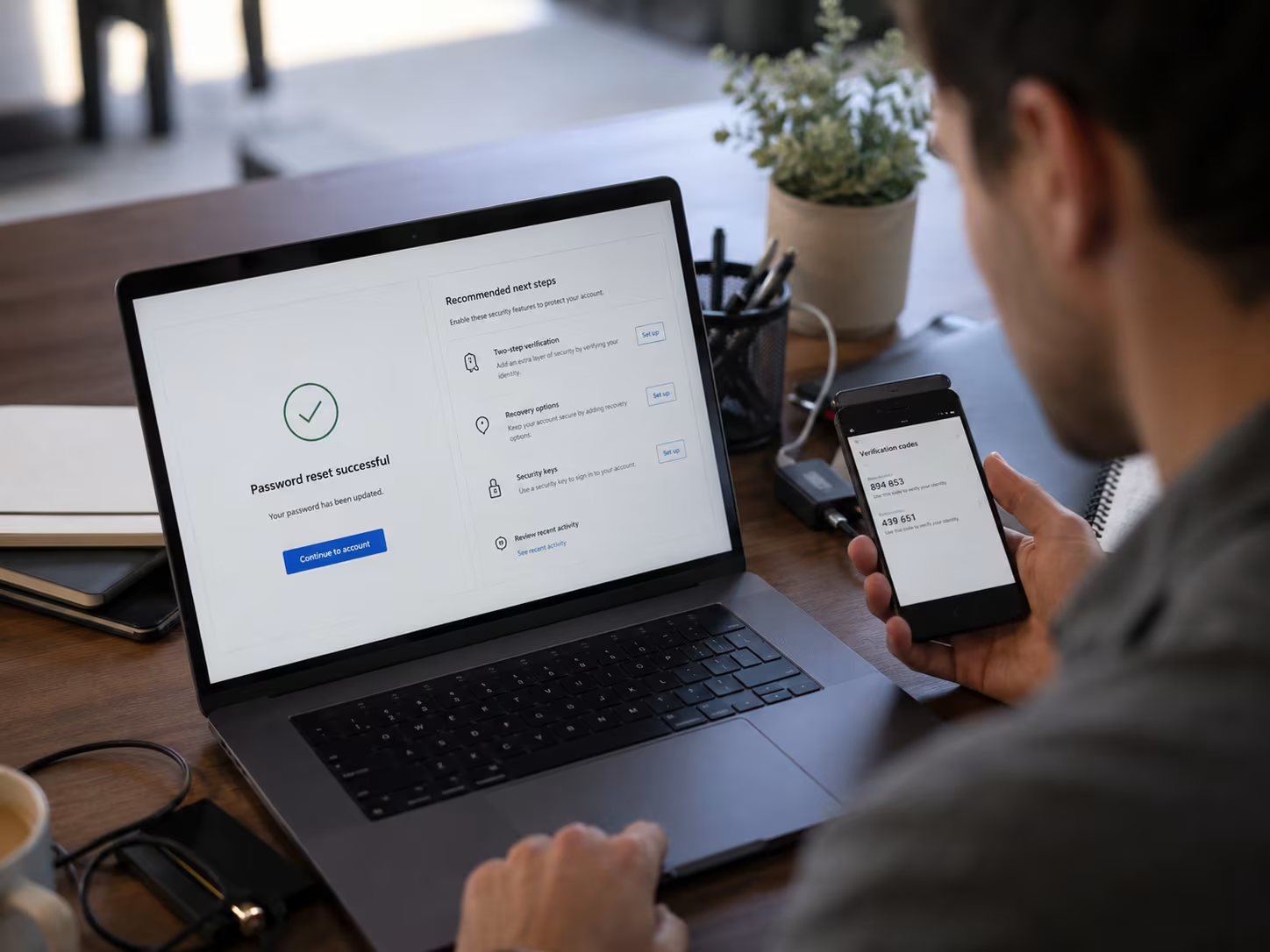
Step #1: Reset your password immediately
Change your password as soon as possible. Use a strong, unique password that you haven’t used before. This stops hackers from continuing to access your account.
Step #2: Check and update recovery details
Make sure your recovery email address and phone number are correct. This helps you reset your password if you get locked out again.
Step #3: Review recent account activity
Look at your account’s sign-in history for any unfamiliar devices or locations. If you see anything suspicious, sign out of all sessions and change your password again.
Step #4: Enable two-factor authentication
Turn on 2FA to add an extra layer of security. This requires a verification code from your phone or app every time you sign in.
Step #5: Remove unauthorised devices
Go to your account settings and remove any devices you don’t recognise. This ensures only trusted devices have access.
Step #6: Scan for malware on your devices
Use a reliable antivirus tool to check your computer and mobile devices for malware. Hackers sometimes use malware to steal passwords or monitor your activity.
Step #7: Notify your IT team or provider
If you work with an IT provider, let them know about the hack. They can help secure your account and investigate how the breach happened.

Practical steps to secure your Microsoft account
Securing your Microsoft account is an ongoing process. Start by reviewing your account security settings and enabling all available protections. Make sure your password is strong and unique, and update it regularly. Don’t share your login details with anyone, and avoid using the same password for multiple accounts.
Regularly check for software updates on your devices and Microsoft apps. Updates often include important security fixes. Set up security alerts so you’re notified of any unusual activity. Finally, train your staff to recognise phishing attempts and suspicious emails. A well-informed team is your first line of defence.
Best practices for protecting your Microsoft account
Following these best practices can help you avoid common pitfalls:
- Use unique, complex passwords for every account and change them regularly.
- Enable multi-factor authentication for all users.
- Set up recovery options like backup email addresses and phone numbers.
- Regularly review account activity and remove old or unused devices.
- Train staff to spot phishing emails and report them immediately.
- Keep all Microsoft apps and devices updated with the latest security patches.
Staying proactive with these steps will help keep your business accounts safe.
How Sonar IT can help with Microsoft hacked
Are you a business with 15-40 endpoints looking to protect your Microsoft accounts? Growing businesses face unique challenges when it comes to account security, especially as teams expand and more devices connect to your network.
We understand how damaging a Microsoft hack incident can be to your operations and reputation. Our team specialises in helping businesses recover from hacks, secure their accounts, and set up reliable systems to prevent future breaches. Contact us today to learn how we can support your business and keep your data safe.
Frequently asked questions
What should I do if my Microsoft account has been hacked and I can’t sign in?
If you can’t sign in, try the account recovery process using your backup email address or phone number. Microsoft will send a code to help you reset your password and regain access. Make sure you use a secure device when following these steps.
Once you’re back in, check your account settings for any changes and update your password again. If you notice unfamiliar devices or apps connected, remove them immediately to prevent further compromise.
How can I tell if my Microsoft account is compromised?
Look for signs like unexpected password changes, unfamiliar sign-in locations, or emails you didn’t send. Microsoft often sends alerts if it detects suspicious activity on your account.
Check your recent activity and device list in your account settings. If you see anything you don’t recognise, update your password and enable two-factor authentication for extra security.
Why is two-factor authentication important for Microsoft account security?
Two-factor authentication (2FA) adds an extra step to the sign-in process, making it much harder for hackers to access your account with just a password. You’ll need to enter a verification code sent to your phone or app each time you log in.
This extra layer of security protects your account even if your password is stolen. Always enable 2FA on all accounts, especially those linked to sensitive business information.
What recovery steps should I take after a Microsoft hacked incident?
Start by resetting your password and updating your recovery options. Next, review your account’s recent activity and remove any unfamiliar devices or apps.
Scan your devices for malware and update all Microsoft apps to the latest version. Notify your IT team so they can help secure your account and investigate the breach.
How can I protect my Microsoft account from phishing attacks?
Train your team to spot suspicious emails and never click on unknown links or attachments. Phishing is a common way hackers steal login details.
Use Microsoft’s built-in security features, like email filtering and security alerts, to help block phishing attempts. Regular updates and user awareness are key to staying safe.
What should I do if my Microsoft account has been hacked more than once?
If your account is repeatedly hacked, review your security settings and update your password to something stronger. Enable two-factor authentication and check for any old or unused devices linked to your account.
Consider working with an IT provider to audit your systems and provide ongoing support. Regular training and updates will help prevent future incidents.



%20(1)%20(1).avif)


